
Synergy has apps available for all three Synergy Interfaces! Apps are available on all iOS and Android devices. They may be available on other interfaces as well. A search of your device’s app store will reveal whether or not an app is available. Included on this page are directions for installing and setting up the apps.
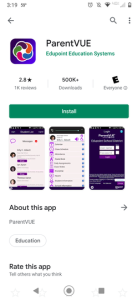
Search and download the appropriate app for you. You can search for ParentVUE, StudentVUE, or TeacherVUE.
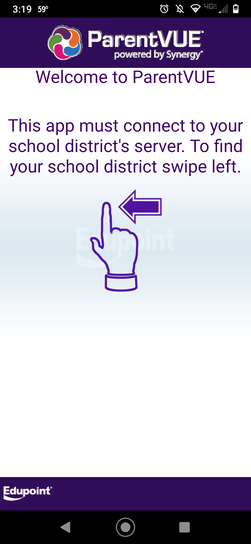
Once the app is downloaded, open it up and you will see the welcome directions shown here. Swipe left on your screen to continue.
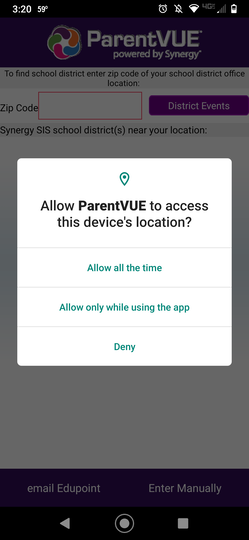
The app can automatically detect your school based on your location. If you are in the Tri-County School District, allow the app to use your device’s location while using the app.
Prefer to enter it manually? Tap the manual option at the bottom of the screen and enter this District URL:
https://rt3.region1.k12.mn.us/rt2358
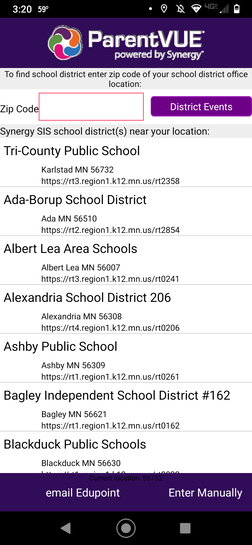
Tri-County Public School should appear as the top choice based on your location. Tap that choice.
Note: If your physical location is outside of the school district, you may see a different school listed first.
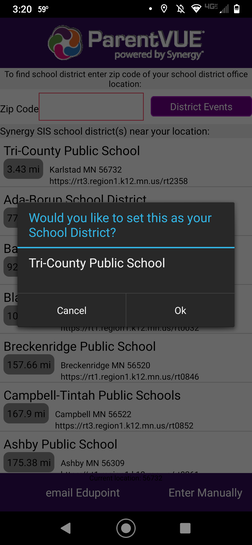
Touch OK to set Tri-County Public School as your school district.
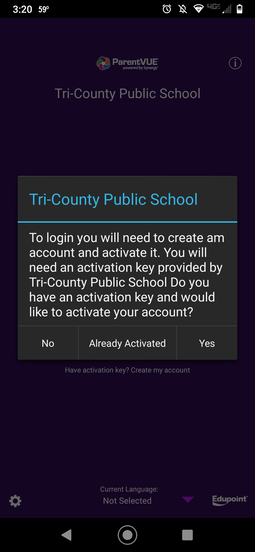
If you have already activated your account, press ALREADY ACTIVATED and you will be taken to the login screen.
If you have not activated your account yet, contact Tri-County School at (218) 436-2261 to receive your activation key, press YES at this prompt, and follow the on-screen directions.